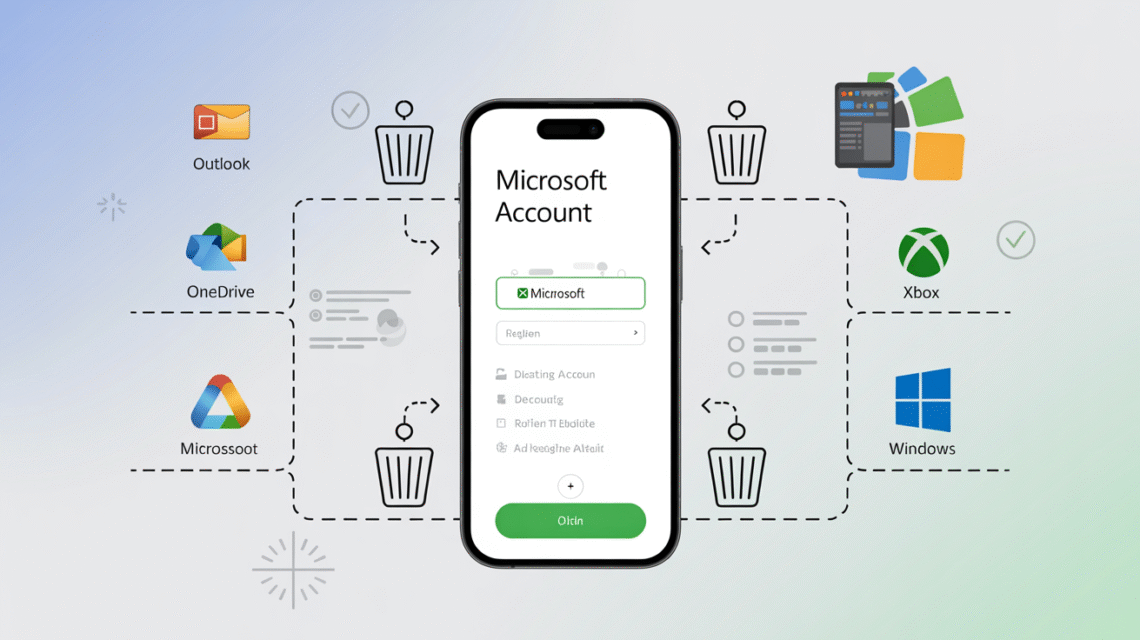
How to Delete Microsoft Account is something many people want to know, especially when they no longer use their email or Microsoft services. Deleting your Microsoft account may seem tricky at first, but if you follow the right steps carefully, it can be done quickly and safely. Your Microsoft account stores a lot of personal information like emails, files in OneDrive, Xbox data, and subscriptions. That’s why it’s important to know what happens when you delete it. By understanding the process, you can make sure you don’t lose anything important by mistake. This guide will walk you through everything you need to do, from preparing your account to making sure it is fully deleted. Whether you are using Windows, Xbox, or Outlook, these steps will help you close your account the right way.
Deleting a Microsoft account is not just about removing an email address. It’s about making sure all your linked services and subscriptions are handled properly. Before you delete, you should cancel any active subscriptions like Microsoft 365, Xbox Live, or Skype credits. You also need to back up important files from OneDrive or emails from Outlook so nothing is lost forever. Microsoft keeps your account for 60 days after you request deletion in case you change your mind, but after that, all your data will be permanently removed. This guide will also explain how to handle any issues that might come up during the process. By the end, you will know exactly how to delete Microsoft account safely, avoid losing important data, and protect your personal information.

What Happens When You Delete Microsoft Account
Before you delete your Microsoft account, it’s important to understand what will happen. Your account holds a lot of personal information like:
- Emails in Outlook
- Files in OneDrive
- Xbox data and game progress
- Skype contacts and credits
- Microsoft 365 subscriptions
When you delete your account, all of these things will be permanently removed after a 60-day waiting period. Microsoft keeps the account inactive for 60 days in case you change your mind. After that, you cannot recover your data. This is why it is very important to make backups and handle subscriptions first.
How to Prepare Before Deleting Microsoft Account
Deleting an account without preparation can lead to permanent loss of data. Here’s what you should do before proceeding:
- Backup Your Emails and Files
Download important emails from Outlook and files from OneDrive. You can save them to your computer or another cloud service. - Cancel Subscriptions
Check if you have any active Microsoft services like Microsoft 365, Xbox Live, or Skype credits. Cancel these to avoid being charged after deletion. - Inform Contacts
If people use your Microsoft email to contact you, let them know about your new email address. - Sign Out from Devices
Make sure you sign out of your Microsoft account on all devices. This prevents any login issues later.
Step-by-Step Guide: How to Delete Microsoft Account on Windows
If you are using Windows, follow these steps carefully:
- Open your web browser and go to the Microsoft Account Closure Page.
- Sign in using the account you want to delete.
- Verify your identity by entering your password and the security code sent to your email or phone.
- Review the list of items to check what you will lose. Make sure you backed up everything.
- Select a reason for closing your account from the dropdown menu.
- Click Mark account for closure.
Your account is now scheduled for deletion. Microsoft will keep it inactive for 60 days, giving you time to recover it if you change your mind.

How to Delete Microsoft Account Using Web Browser
You can also delete your Microsoft account directly from any web browser:
- Open https://account.microsoft.com and log in.
- Go to Your Info > Manage Your Account > Close Account.
- Follow the on-screen instructions to verify your identity.
- Read the warnings about data loss and make sure to backup everything important.
- Confirm by clicking Next and Mark Account for Closure.
This method works for any device—PC, Mac, or mobile browser.
How to Backup Your Data Before Deleting Microsoft Account
Before deleting your account, you need to save your important data:
- Emails: Export your Outlook emails to a PST file or forward them to another email account.
- Files: Download all files from OneDrive to your computer or another cloud storage.
- Contacts: Export your contacts from Outlook and Skype.
- Game Data: Make sure your Xbox progress and saved games are backed up.
Taking these steps ensures you don’t lose anything important.
Handling Subscriptions Before Deleting Microsoft Account
Active subscriptions can cause problems if not canceled before deletion:
- Go to Services & Subscriptions on your Microsoft account.
- Check for active subscriptions like Microsoft 365, Xbox Live, or Skype credits.
- Cancel the subscriptions to avoid future charges.
- Make sure any pre-paid balances or refunds are handled before account closure.
How to Recover Your Microsoft Account if You Change Your Mind
If you delete your account but change your mind within 60 days, you can recover it:
- Go to the Microsoft Account Recovery Page.
- Sign in with your deleted account credentials.
- Follow the steps to verify your identity.
- Click Reactivate Account.
After 60 days, Microsoft permanently deletes the account, and recovery is impossible.
Common Problems When Deleting Microsoft Account and How to Fix Them
Sometimes, users face issues while deleting their account. Here’s how to handle them:
- Cannot sign in: Make sure you are using the correct email and password. Check for typos.
- Verification issues: Ensure your phone number or backup email is active to receive security codes.
- Active subscriptions blocking deletion: Cancel all subscriptions before trying again.
- Important files missing: Double-check your backups before deletion.
By following these tips, you can avoid problems during the deletion process.

Final Thought
People delete their Microsoft accounts for various reasons:
- No longer using Microsoft services.
- Want to switch to a different email provider.
- Concerns about privacy and data security.
- Avoid unwanted charges from subscriptions.
Deleting your account can help you take control of your digital life and simplify your online presence.
FAQs
Q1: How long does it take to delete a Microsoft account?
A1: Microsoft keeps your account inactive for 60 days. After this, it is permanently deleted.
Q2: Can I recover my account after deletion?
A2: Yes, but only within 60 days. After that, recovery is not possible.
Q3: Will I lose my Xbox games and progress?
A3: Yes. Make sure to backup game data before deletion.
Q4: Do I need to cancel subscriptions before deleting?
A4: Absolutely. Cancel all subscriptions to avoid charges after account deletion.
Q5: Can I delete my Microsoft account on mobile?
A5: Yes. You can use a mobile browser to access the Microsoft account closure page.